
How-to
How Do You Turn a Photo Into a Coloring Page in Canva?
Upload your photo to Canva, apply a sketch or outline effect, push contrast up and color to black and white, then print. Here is how, plus its limits.
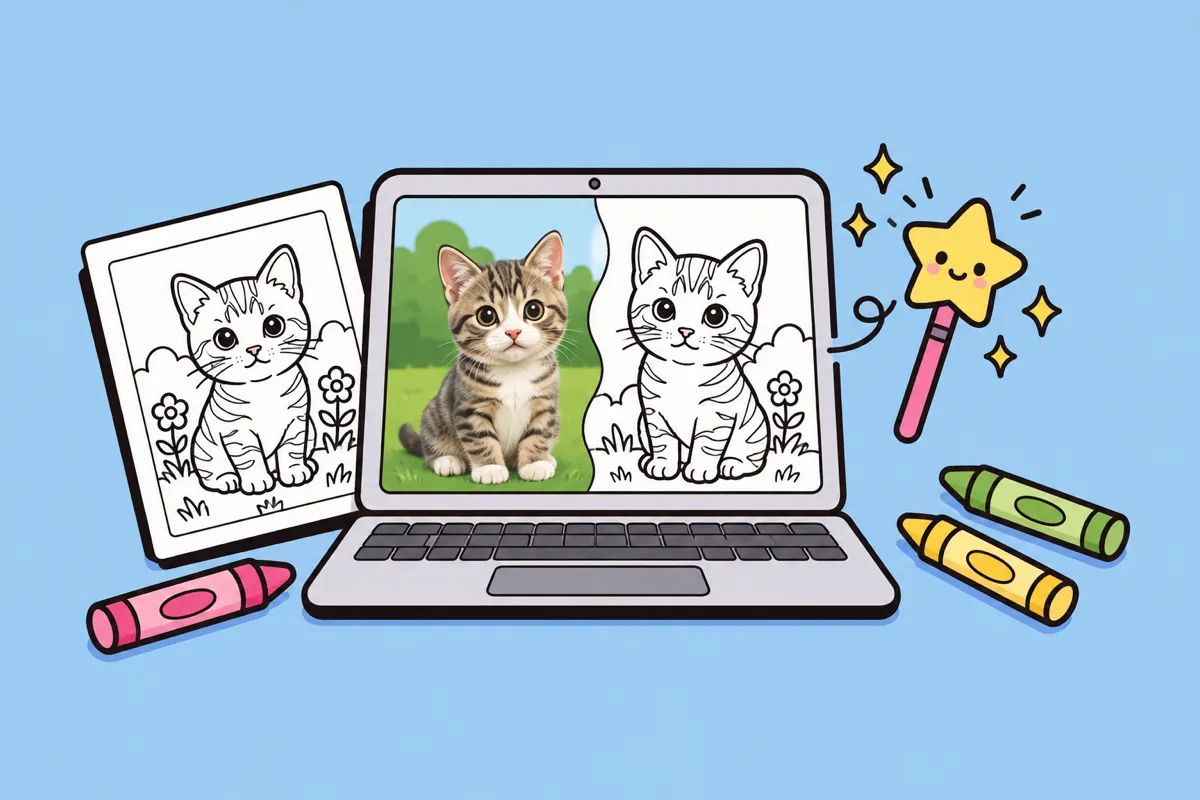
To turn a photo into a coloring page in Canva, upload the photo, apply a sketch or outline style effect, turn the image black and white, raise the contrast until the background goes white, and print it on a letter-size or A4 page. It works best with simple photos that have one clear subject and a plain background. Busy photos usually come out gray and patchy rather than as clean lines.
Below is the method we use when we test it, what to expect from the result, and when a dedicated photo to coloring page tool will save you time.
What do you need before you start?
- A free Canva account (web or app).
- One photo with a single clear subject: a face, a pet, a toy, a house.
- Good light in the photo. Shadows turn into dark blobs once you convert to black and white.
- A printer, or a way to save the result as a PDF.
Crop the photo before you upload it if you can. The less background there is, the cleaner your lines will be.
How do you make the coloring page, step by step?
Canva changes its menus from time to time, so the names below are generic. Look for the closest match in your version.
- Create a design. Start a new design at US Letter or A4 size so the page prints at the right shape.
- Upload your photo. Use the Uploads area, then drag the photo onto the page and stretch it to fill most of it.
- Open the photo’s edit options. Select the photo and choose Edit. This is where Canva keeps its filters, adjustments and effects.
- Apply an outline-type effect. Look for an effect such as a sketch, pencil, or outline filter. Canva’s app area also has third-party apps that convert a photo to a sketch. Try a few and pick the one with the cleanest edges.
- Remove the color. Set saturation all the way down, or pick a black and white filter, so you are left with gray tones only.
- Push contrast and brightness up. Raise contrast a lot and brightness a little. The goal is a white background with dark outlines. Stop when the lines start breaking apart.
- Check it at 100 percent zoom. Look for gray patches inside shapes. Those areas will be hard to color over.
- Download and print. Download as PDF Print for the sharpest result, then print with “fit to page” turned on.
If one effect leaves too much shading, undo and try another before you start adjusting sliders. The starting effect matters more than the fine-tuning.
What are the limits of the Canva method?
Canva is a design tool, not a line art tool, so the result is a filtered photo, not a drawing. In practice that means:
- Gray shading stays behind. Hair, fur, clothing folds and shadows often turn into gray texture instead of an outline you can color inside.
- Lines break up. When you push contrast high enough to clean the background, thin edges such as a chin or ear can disappear.
- Busy backgrounds become noise. Trees, furniture and patterned walls turn into a field of small marks.
- Faces can look harsh. Filters trace every wrinkle and shadow, which is rarely flattering for a family portrait.
- It takes some trial and error. Expect to try several effects per photo.
You can clean things up by hand with Canva’s drawing tool, or by placing white shapes over messy areas, but that adds time for every page.
Does Canva have its own AI coloring page generator?
Yes. Canva also offers an AI coloring page generator page that creates coloring pages from a text description. That is a different job from converting your own photo: it draws something new from a prompt, so it will not look like your dog or your kids. If you want a likeness, stick with the photo method above or use a tool built for photos.
Canva or an AI photo converter: which should you use?
| Canva filter method | AI photo to coloring page tool | |
|---|---|---|
| Output | Filtered photo with outlines and some shading | Redrawn line art with closed shapes |
| Background | Kept unless you remove it | Usually simplified or dropped |
| Best for | Simple, high-contrast photos | Portraits, pets, busy scenes |
| Effort | Several minutes of trial and error | Upload and wait |
| Cost | Free with a Canva account | Varies by tool |
Choose Canva if you already design in it, your photo is simple, and you do not mind some gray texture. Choose an AI converter if you want clean black outlines that look like a real coloring book page, especially for faces and fur.
Our photo to coloring page tool on coloringmaker.app redraws the photo as line art instead of filtering it. You can try one page free on the web without signing up. Photos you upload there are sent once to draw the page, not saved on our servers, and never shared.
How do you get a cleaner result from any method?
These tips help whether you use Canva or an AI tool:
- Pick a photo taken in daylight, facing the subject, with no strong shadows.
- Crop tight. Fill the frame with the subject.
- Avoid tiny details. Group photos with ten faces come out cluttered at any size.
- Print on slightly heavier paper if kids will use markers. Our guide to the best paper for coloring pages explains weights and settings.
What can you make with a photo coloring page?
Once you have a method that works, photo pages make good small projects: a portrait of each child for a birthday party, a pet page for a grandparent, or a full family book. If you want to go further, see how to make a personalized coloring book or how to turn your pet into a coloring page.